Jenkins pipeline 만들어서 배포하기(Python FastAPI 배포 환경 구축 - 2)
2022.07.29 - [Programming/Jenkins] - Jenkins Docker-compose로 시작하기 (Python FastAPI 배포 환경 구축 - 1)
Jenkins Docker-compose로 시작하기 (Python FastAPI 배포 환경 구축 - 1)
jenkins란? https://ict-nroo.tistory.com/31 [Jenkins] 젠킨스란 무엇인가 What is jenkins? 젠킨스는 소프트웨어 개발 시 지속적으로 통합 서비스를 제공하는 툴이다. CI(Continuous Integration) 툴 이라고 표..
datacook.tistory.com
git
https://github.com/Joonyeong97/fastapi
GitHub - Joonyeong97/fastapi: fastapi start
fastapi start. Contribute to Joonyeong97/fastapi development by creating an account on GitHub.
github.com
git에는 이미 jenkins에서 python fastapi을 배포하기 위해서 파일들이 생성되어 있습니다.
이미 jenkins가 정상 설치되어 있다고 가정하고,
jenkins에서 프로젝트를 생성해줍니다.
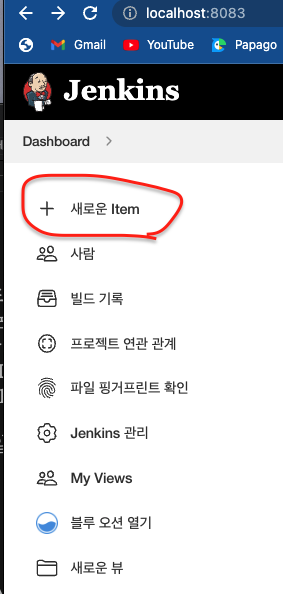
새로운 item 클릭

프로젝트 이름을 넣고
Pipeline으로 설정합니다.

General 탭에서 GitHub project 체크를 해줍니다.
그리고 본인의 git project url을 넣어줍니다.

이번엔 pipeline 탭에서 Definition 에 Pipeline script from SCM 클릭
이후 SCM을 Git으로 선택 후에
Repository URL에 위에 적은 git 주소를 적어줍니다.
여기서 Credentials은 본인의 git hub 아이디와 시크릿 키를 발급 받아서 작성해야합니다.
작성 방법은 밑에 글을 참고해주세요.
2022.07.31 - [Programming/Jenkins] - Github 개발자용 Secret key 발급 방법 (jenkins Credentials 생성)
Github 개발자용 Secret key 발급 방법 (jenkins Credentials 생성)
github에서 개발자용 Secret key 발급 방법을 소개합니다. 매우 간단하므로 한번 보면 다음에는 바로 사용할 수 있습니다. 본인 github로 들어갑니다. Settings 클릭 맨 밑에 Developer settings 클릭! Person..
datacook.tistory.com
이제 Git에서 webhook을 설정해줘야 git에서 push를 받으면 jenkins로 push했다고 알려줄겁니다.
github webhook 설정은 아래 글을 참고해주세요.
2022.07.31 - [Programming/Jenkins] - Jenkins Github 로컬에서 Webhook 사용하기
Jenkins Github 로컬에서 Webhook 사용하기
일단 Github에서 Webhook을 사용하려면 Jenkins에 DNS 설정이 되어있어서 외부에서도 연결이 가능해야 합니다. 하지만 우리는 로컬에서 사용해볼 것이기 때문에 ngrok를 사용해서 진행해보겠습니다. http
datacook.tistory.com
여기까지 맞췄다면 환경설정은 끝났습니다.
이제 Jenkinsfile을 수정해서 pipeline을 만들면 됩니다.
제가 예시로 드린건
docker build -> docker-compose up -d -> docker image push
순서입니다.
pipeline {
    agent any

    environment {
        imagename = "joon09/fastapi-torch"
        registryCredential = 'joon09'
        version = '1.1'
        dockerImage = ''
    }

    stages {

        // docker build
        stage('Bulid Docker') {
          agent any
          steps {
            echo 'Bulid Docker'
            script {
                dockerImage = docker.build("${imagename}:${version}", "--no-cache .")
            }
          }
          post {
            failure {
              error 'This pipeline stops here...'
            }
          }
        }

        // docker Deploy
        stage('Deploy Docker') {
          agent any
          steps {
            echo 'Deploy Docker '
            sh 'tag=${version} docker-compose -f ./docker/docker-compose.yml up -d'
          }
          post {
            failure {
              error 'This pipeline stops here...'
            }
          }
        }

        // docker push
        stage('Push Docker') {
          agent any
          steps {
            echo 'Push Docker'
            script {
                docker.withRegistry( '', registryCredential) {
                    dockerImage.push(version)  // ex) "1.0"
                }
            }
          }
          post {
            failure {
              error 'This pipeline stops here...'
            }
          }
        }


    }
}
environment에 들어가는 변수를 각 개인에 맞게 설정해서 작업하면 됩니다.
git push를 해보면

자동으로 pull 받아서 pipeline을 실행하게 됩니다.

실행 중인 pipeline 모습입니다.
jenkins docker-compose.yml에 로컬에 있는 docker.sock 과 연결을 해놓아서 도커 내부에서 docker container를 올려도
로컬에서 올린 것과 동일하게 올라갑니다.
끝.